
Create the First Platform Admin User in Console
Console automatically adopts and promotes the first eligible Keycloak admin when they sign in. It also adopts or creates accounts and applies admin roles in enabled tools through the existing provisioning workflow.
Prerequisites
- Complete the service configuration in Setup Console for the First Time.
- Use a Console backend version that includes automatic first-admin provisioning.
- Configure the admin group and its Keycloak permissions using Setup Keycloak for Console.
- Ensure Console has no existing Platform Admin role. Regular users may already exist.
The KEYCLOAK_PLATFORM_ADMIN_GROUP setting identifies the eligible Keycloak group. It defaults to _structsureAdmins, which is also recognized for compatibility. If your environment uses another name, such as _smoothglueAdmins, set the variable to that exact name and reload the backend configuration. The group must have the required Keycloak permissions, including the realm-management client's realm-admin role mapping.
A regular user can sign in before the admin and will remain a Platform User. Automatic promotion stops once a Platform Admin role exists; manage additional admins through Console's normal role management workflow.
Prepare the Keycloak Account
Choose an existing human admin account or create one using the steps below. Avoid the username admin, which is reserved in some tools. Do not use the console-bot account to sign in to Console.
- In the configured realm (for example,
smoothglue), clickUsersin the left-hand panel. - Click
Add user. - Fill in the following information for the initial user:
- Email verified: Enabled
- Username:
<your-desired-admin-username> - Email:
<your-desired-admin-username>@<your-domain>.com - First name:
<your-desired-admin-first-name> - Last name:
<your-desired-admin-last-name> - Groups: the configured Platform Admin group (default:
_structsureAdmins)
- Click
Create.
Set a password for the admin user:
- From the configured realm, go to
Users>your-desired-admin-username. - Go to the
Credentialstab. - Click
Set password. - Disable
Temporary. - Enter a password.
- Click
SaveandSave passwordto confirm.
Adopt User and Promote to Admin
Sign in with the prepared Keycloak account. Console uses the user's token to verify the account identity and admin group membership, assigns the Platform Admin role, then adopts or creates accounts and applies admin roles in enabled tools. Existing tool admin roles are retained.
-
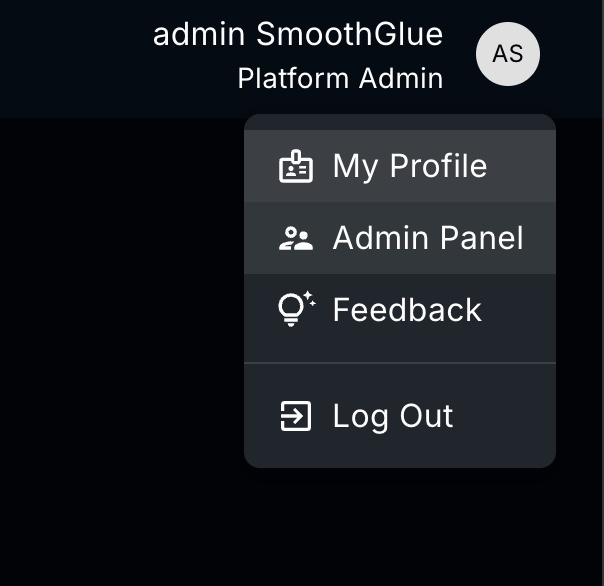
Refresh the page if needed, then open the user menu at the top right and select Admin Panel.
-
In the side navigation, expand Zero Trust Fabric and select Access Control Engine.
-
Find the intended admin account by name or email and select its row to open the user details.
-
Sign in to each enabled tool with the same account and confirm that its administration features are available. If access is missing, follow Repair Tool Accounts and Roles.
Manual promotion and user repair are not required when automatic setup completes successfully.
Automatic promotion grants the Console Platform Admin role without granting Django staff or superuser access. Follow Create a Django Admin Account separately if that access is needed.
Troubleshoot Automatic Setup
| Symptom | What to check |
|---|---|
| The admin remains a Platform User | Confirm the active account, realm, exact group name, and Keycloak role mappings. Fully sign out or use a private browser window when switching accounts. |
Backend logs show Unable to verify first Platform Admin eligibility | Check the reported error type and HTTP status. Correct token, permissions, connectivity, or certificate issues, then sign in again. |
| No warning appears, but promotion does not happen | Account identity and group mismatches return without a warning. Confirm the token subject, email, and username match the Keycloak and Console accounts. Also check for an existing Platform Admin role; even an unassigned role currently blocks automatic promotion. |
| Backend logs report a missing Keycloak Tool record | Restore the Keycloak Tool record through the deployment's normal initialization process, then retry. |
| Console admin access works, but tool access is incomplete | Fix the affected tool configuration or credentials, then repair the user. |
If verification fails before the local admin role is assigned, Console can retry on the next authenticated request. A restart is not normally needed; restart or redeploy when loading changed code or configuration.
Console saves the local Platform Admin role before provisioning downstream tools. If tool setup then fails, the local role remains and subsequent logins do not automatically retry provisioning. Use user repair after correcting the integration issue.
Manual Promotion Fallback
An authorized platform engineer can use the existing management command if automatic promotion cannot be completed.
-
Sign in to Console once with the intended admin account so that the user exists locally.
-
Run the following command and enter the exact Console username when prompted:
django-admin create_platform_admin -
Refresh Console or sign out and back in, then select Admin Panel.
-
Complete the user repair steps below and verify access in each enabled tool.
The command changes Console's database but does not itself provision tool accounts or roles. When promoting an existing non-admin account, it also grants Django staff and superuser access, unlike automatic promotion. Use it only for the intended administrator. Once the local admin role exists, automatic provisioning will no longer run.
Repair Tool Accounts and Roles
Use repair after manual promotion or when automatic provisioning leaves tool setup incomplete.
-
Correct the affected integration's configuration, credentials, or permissions.
-
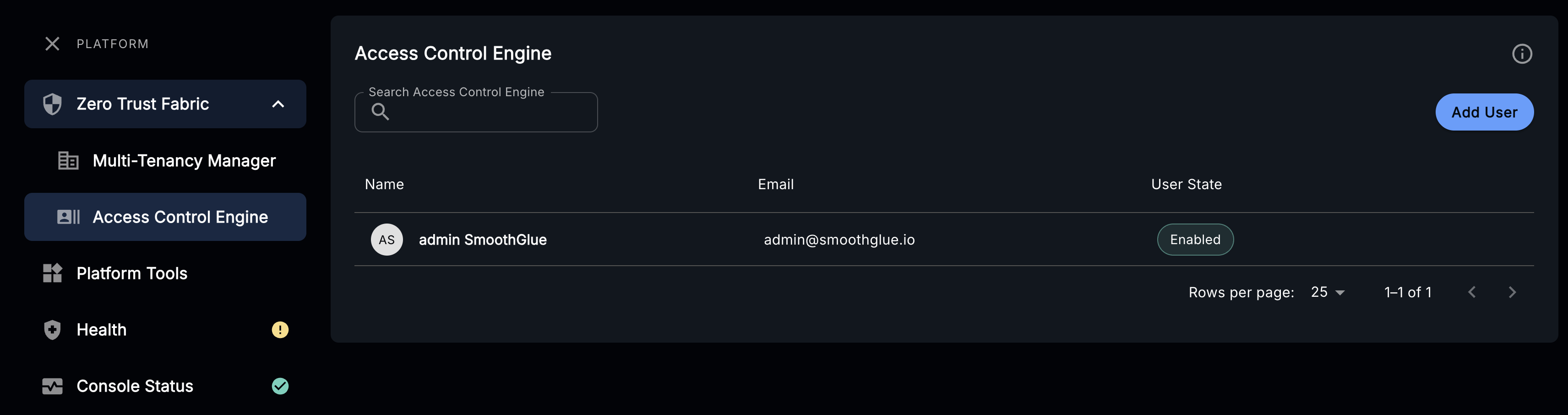
In Admin Panel, expand Zero Trust Fabric in the side navigation and select Access Control Engine.
-
Find the intended admin account by name or email and select its row to open the user details.
-
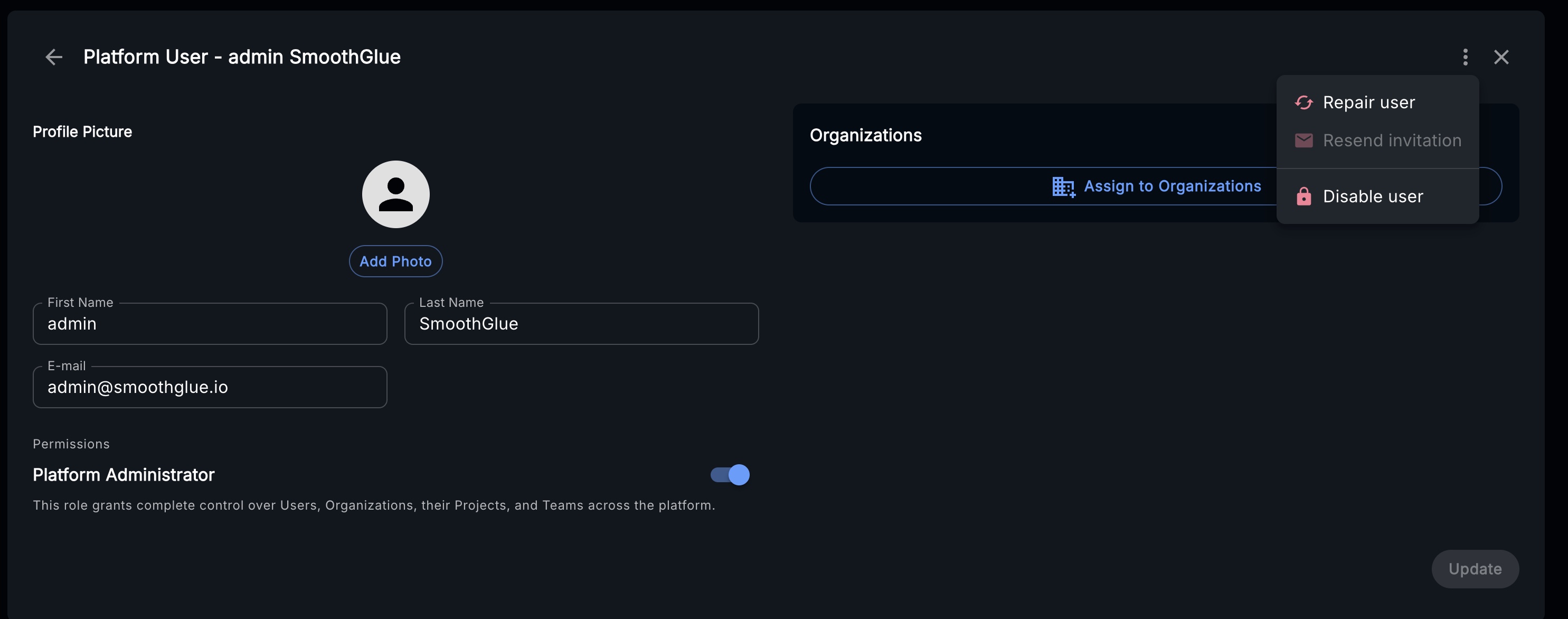
Open the three-dot menu in the page header and select Repair user. This reconciles accounts and roles in enabled tools, such as GitLab, Mattermost, and Jira.
-
If an error notification appears, record its message and have the platform engineer check the backend logs for the failed operation. Correct the cause before retrying repair.
-
Sign in to each enabled tool and confirm that its administration features are available. A successful repair notification alone does not verify access in every tool.